Definitions
How Honeycomb thinks about a restaurant
A short reference for the concepts that show up everywhere else in these docs: organizations, restaurants, menus, items, modifiers, allergens, diets, and how items can link across locations.
Organizations and restaurants
An organization is the account a restaurant group signs up under. Every restaurant belongs to exactly one organization. A single organization can own many restaurants, which is how a chain manages several locations from one login.
A restaurant is one physical or virtual location: a name, an address, a slug used in its public menu URL, plus its own settings for theme, supported allergens, and supported diets.
| Field | Lives on | Notes |
|---|---|---|
| slug | restaurant | Used in the public menu URL, for example menu.honeycomb.ai/restaurant/earls-tap-and-barrel |
| supported_allergens | restaurant | Which allergens this location tracks and displays |
| supported_diets | restaurant | Named filter rules like Vegan or Gluten Free |
| region, group_name | restaurant | Optional grouping used when linking items across locations |
Draft & Publish menus
By default, saving a menu change publishes it immediately — the next guest to load the public menu sees it. Organizations can opt into a draft & publish workflow instead: saving stages the change in a draft rather than writing it live, and a separate Publish action pushes it out when you're ready. Nothing about how you edit a menu changes — only when the edit actually goes live.
Every draft save returns a preview link
(menu.honeycomb.ai/preview/<token>) that renders the menu
with your draft changes included, so anyone with the link — a manager, a
franchise owner, a photographer — can review it before it's public. Preview
links aren't indexed by search engines and expire after a configurable
number of hours.
Publishing can target just the menu you're editing, or every draft menu across every restaurant in the organization at once — useful for a multi-location rollout that should go live everywhere together rather than location by location.
| Concept | Notes |
|---|---|
| Draft | A menu's staged, unpublished state — the live menu is untouched until you publish |
| Preview link | Time-limited, non-indexed URL showing the draft in place |
| Publish | Pushes one draft menu, or every draft menu in the organization, live at once |
This is opt-in per organization — restaurants that don't turn it on keep today's behavior, where every save is immediately live.
Modifiers
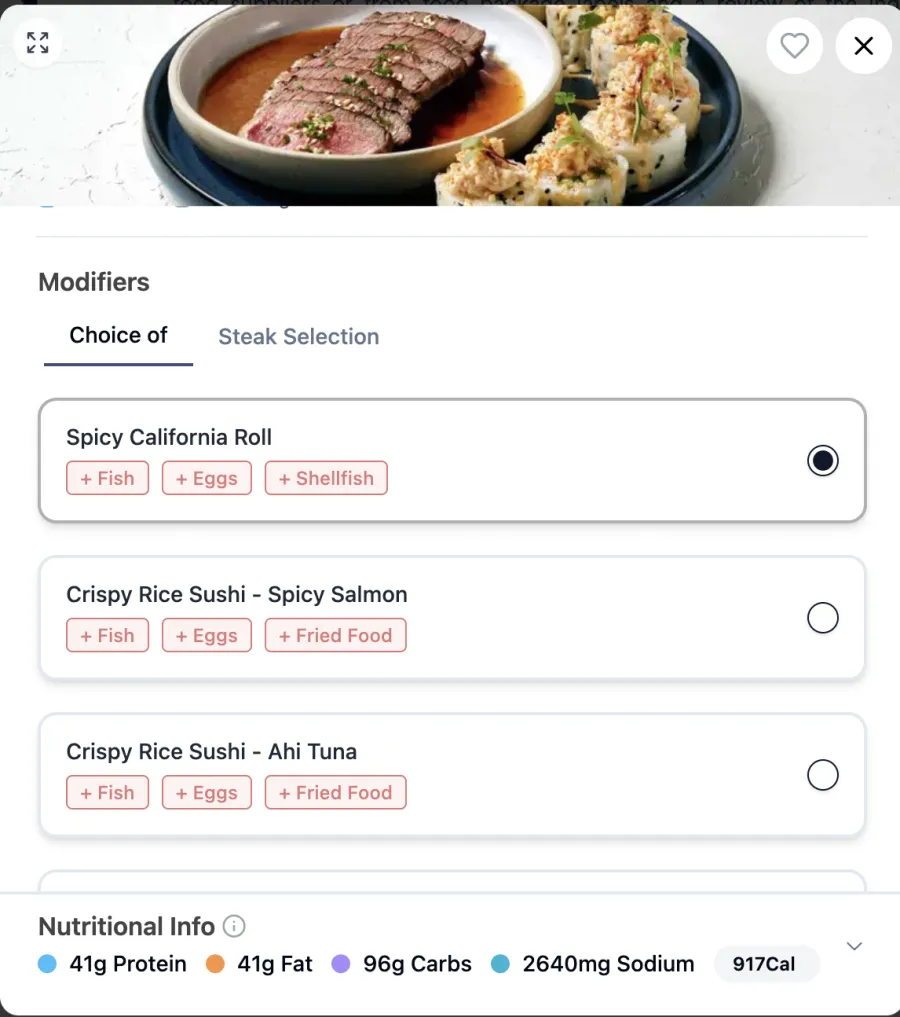
A modifier is a configurable option on an item: choose a size, swap the bun, add extra cheese. Each modifier can carry its own price change, its own allergens added or removed, and its own nutrition change.
| Field | Purpose |
|---|---|
| name | Shown to guests, for example "Extra cheese" |
| price_delta_cents | Added to the item's base price |
| added_allergens / removed_allergens | How this option changes the item's allergen set |
| nutritional_delta | Change in calories, protein, carbs, fat |
When a guest picks a modifier in the web plugin, the item's effective allergen set updates on the spot. A burger with a gluten free bun option selected drops gluten from its allergen chip in real time.
Allergens and diets
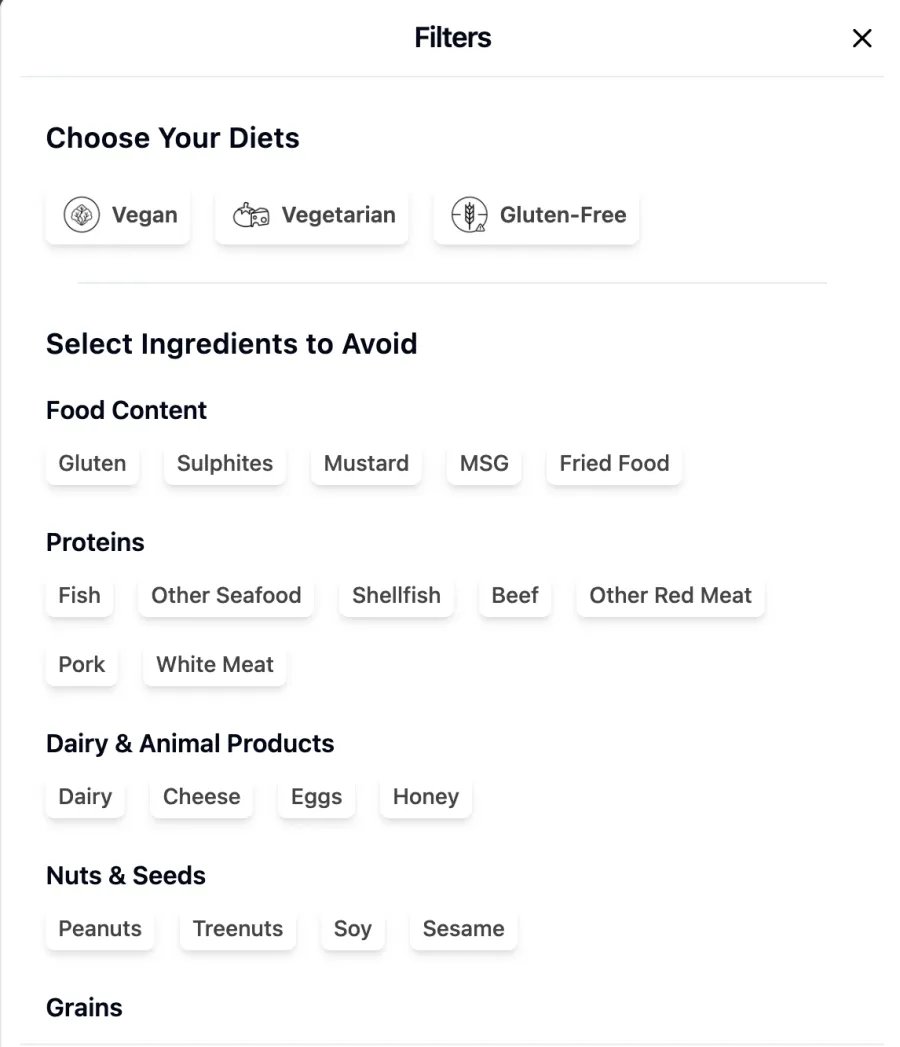
Every restaurant chooses which allergens it tracks. Only allergens on that list appear as filter toggles for guests, as columns in the generated allergen guide, and as tags an admin can attach to an item.
Honeycomb separates two ideas on every item:
| Field | Meaning |
|---|---|
| allergens | Definitely contains |
| trace_allergens | May contain traces of |
A diet is a named rule, such as Vegan or Keto, that a guest can toggle on the public menu. Each diet excludes items that contain certain allergens or that are missing a required tag. Diet rules run in the guest's browser so filtering feels instant.
Linking items across restaurants
A chain with several locations often wants the same burger to stay in sync everywhere. Honeycomb models this with item families and item links.
When two items are linked, editing the source item and choosing to apply the change to linked items pushes that edit, and any modifier changes, to every linked item across every restaurant it reaches. This is the same mechanism used by the API's apply_to_linked_items option, described on the API page.
Organization API keys
An admin or owner can generate an API key from the Developer tab in the dashboard at console.honeycomb.ai. One key covers the whole organization: it can do anything that admin's own login session could do, across every restaurant the organization owns, without a person having to be logged in.
Keys are shown in full exactly once, at creation. After that only a short prefix is stored, so losing a key means generating a new one rather than looking the old one up. See the API page for how to use a key once you have it.